Connect Reporting
ROBOTILL Connect gives you a live view of your shop’s sales and stock from a phone, tablet or computer. Today’s sales and current stock levels update about every five minutes.
Activate reporting
- Create a ROBOTILL Connect account and confirm your email address. If you already have an account, sign in.
- Add a business and site. Create one site for each shop or branch you want to report on.
- Link the site from ROBOTILL Back Office. Pair one computer at the shop with the matching site in Connect.
- In Connect, open your business and select Open site. If the site needs a subscription, select Reporting subscription and renewal, then Get reporting. Follow the purchase steps on that page. Once the subscription is active, the first figures appear when the shop sends them.
What you can see
- Overview. See sales after refunds, gross profit, completed sales, refunds, a seven-day sales chart, top products and low-stock alerts. The overview opens on today’s figures.
- Daily sales. Compare each day’s sales, refunds, gross profit and completed sales over the dates you choose.
- Product sales. See units sold, sales after refunds and gross profit for each product.
- Stock on hand. See current quantities by location and filter for items that are low or out of stock.
More reports will be added later.
How updates work
Reporting is set up once per site and includes all tills and computers that share the shop’s ROBOTILL database. The Connect service keeps updating the reports in the background even when all ROBOTILL apps are closed. Keep the linked computer switched on and connected to the internet, with access to the shop’s database.
The live view on a phone
Swipe across the report tabs to reveal more reports on a narrow screen.
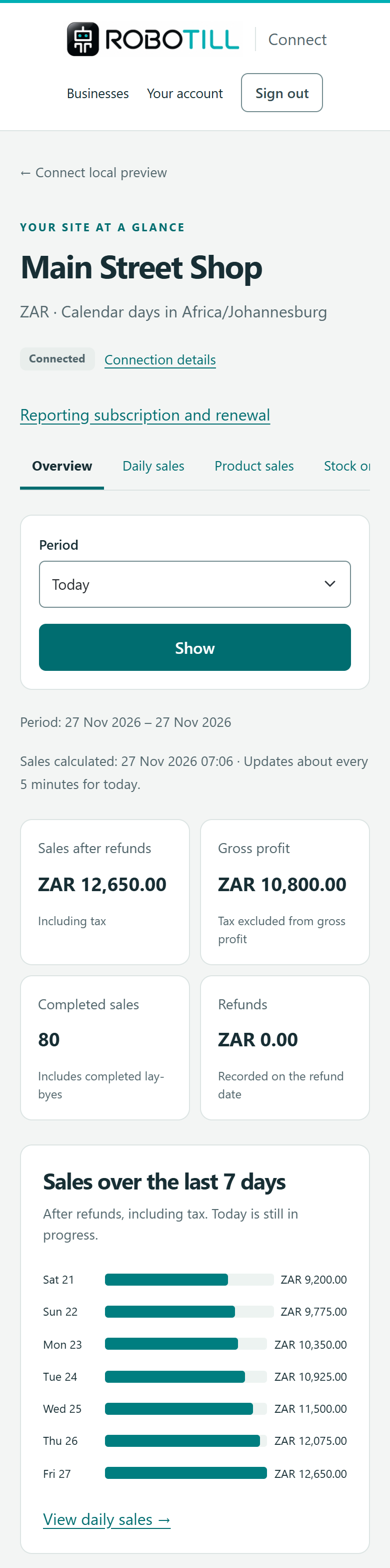 The Connect Overview on a phone, using sample shop data.