Price Tiers and Happy Hour
Price Tiers
Each product has its normal price (tier 1) and can have prices for tiers 2 and 3. Set these prices in
Product Setup.
If the selected tier has no price set for a product, ROBOTILL uses that product's tier 1 price.
An explicitly set price of zero remains zero.
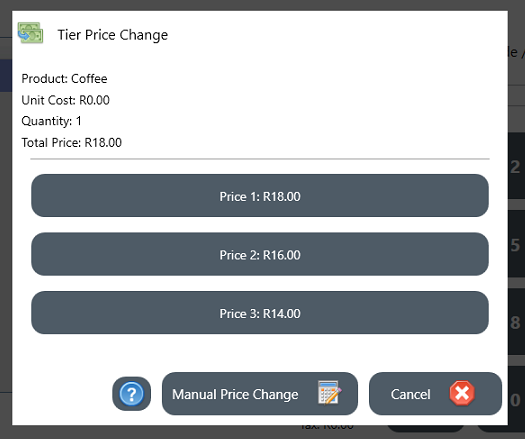
A cashier can change an individual sale item's price by selecting another price tier or entering a manual price.
To use a tier for newly added items throughout a sale, select a price mode as described below.
Name your price tiers
Open ROBOTILL Back Office > Home > Setup and Settings > Settings >
Price Tiers & Happy Hour. Enter the descriptions for tiers 2 and 3, then click
Save changes. These names are displayed to cashiers in the POS apps.
The descriptions have moved from the Display settings page.
Price Modes
You can also use price tiers with price modes. In the POS module click on the 'Price Mode' button.
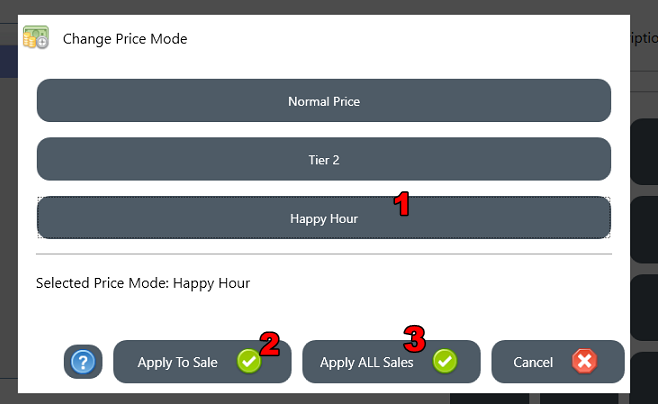
- Select the price mode
-
You can choose to apply the price mode to the current sale only. Note that only items added after the
mode was selected will use the selected price tier. After the sale is completed, automatic pricing resumes:
Happy Hour when its schedule is active, otherwise the normal price tier.
-
You can choose to apply the price mode to all sales. The price mode will stay on this mode
until the user logs off, the program is restarted or another price mode is selected.
The current price mode will be displayed on top of the POS module (where the user, drawer and other info is displayed).
An example where the 'current sale' option would be used is if you allow a specific customer to purchase
all the products at the second or third tier prices. Note another option for changing prices for a sale
is to use
discounts.
The 'all sales' option is a manual override. It takes precedence over automatic Happy Hour pricing
until you log off, restart the app or select another price mode.
Happy Hour — scheduled pricing
Happy Hour automatically selects a price tier in Retail and Restaurant during a weekly
promotion. It is off until you enable it and requires a registered POS app. You can set one time period
and choose the days on which it repeats.
- Set the promotional prices for your products in price tier 2 or 3.
- In Back Office, open Home > Setup and Settings > Settings > Price Tiers & Happy Hour.
- Select Enable Happy Hour.
- Select the Happy Hour price tier: tier 2 or tier 3.
- Enter the Start time and End time in 24-hour format, for example 17:00 and 19:00.
- Select at least one day of the week.
- Click Save changes.
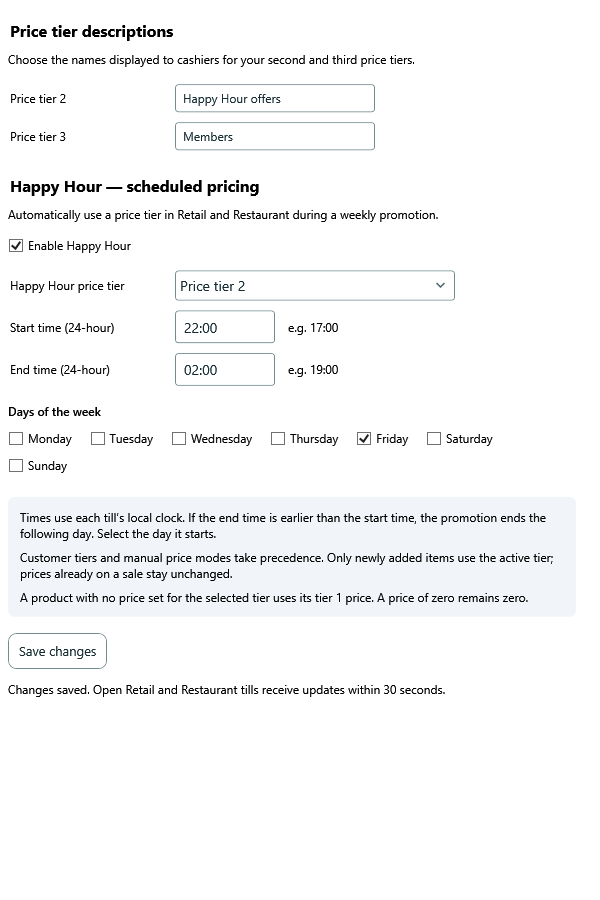
Each till uses its local date and time. The start time is included and the end time is excluded.
For a period crossing midnight, select the day on which it starts: Friday 22:00–02:00 runs from
Friday evening until Saturday at 02:00. The start and end times must be different.
Customer-specific tiers and manually selected price modes take precedence over Happy Hour.
A manual mode also takes precedence over the customer's tier. The displayed price mode includes
“Happy Hour” when automatic promotional pricing is in use. Only newly added items use the active tier;
existing sale items keep their prices. If a product's selected tier price is not set, its tier 1
price is used. An explicitly set zero price remains zero.
Open tills normally receive saved settings in about 30 seconds, without restarting. At the end of the scheduled period they return
to normal pricing unless a customer or manual override applies. Clear Enable Happy Hour
and save to stop the schedule. No internet connection is required.
Price Tiers with Customer Cards
You can allocate a specific price tier level to a specific customer (See
Customer Stats and Rewards).
If the
customer card
is scanned/swiped during a sale, the customer's tier takes precedence over Happy Hour for newly added items.
A manually selected price mode takes precedence over the customer tier. Removing the customer restores
automatic pricing unless a manual price mode is active.