Booking Module
Use ROBOTILL Bookings to reserve rooms, equipment, technicians or other resources. Open the Booking/Hospitality app from the ROBOTILL group in the Windows Start menu, then log in.
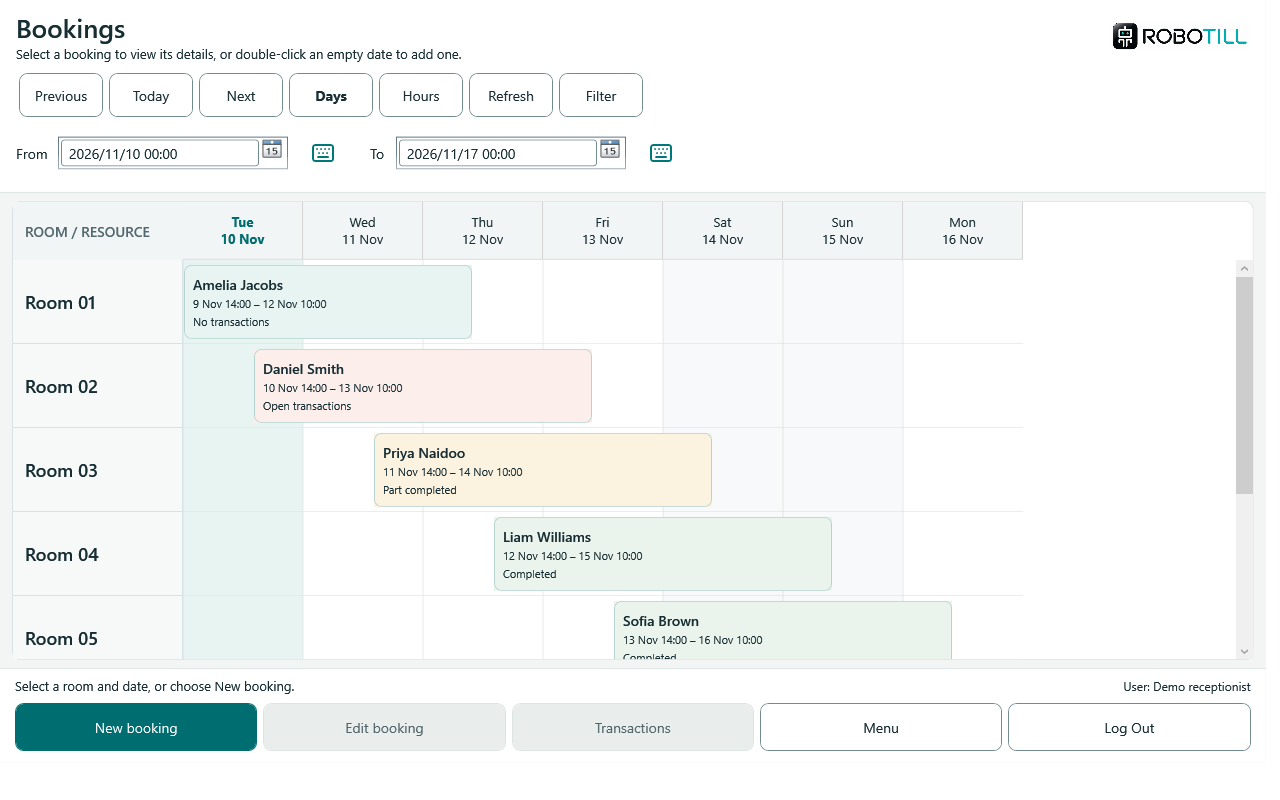
Screenshots use fictional customers and sample bookings.
Getting started
- Create booking resources in Back Office.
- Set up the booking sales menu if you will add accommodation or other charges.
- Create a booking from the planner.
- Use Transactions to prepare booking sales. Complete open booking sales in ROBOTILL Retail.
Finding your way around the planner
- Days shows a seven-day period. Hours shows one day divided into hours. The last-used mode is remembered.
- Previous and Next move by the displayed period. Today returns to the current day.
- For a custom period, change From and To, then select Refresh. To is the end boundary of the displayed period: a week from 10 November to 17 November displays 10–16 November.
- Room/resource names stay on the left and date headings stay at the top while you scroll. The current date is highlighted.
- A booking card shows the customer, booking period and transaction completion state. Hover over a card for the full details and any notes.
- Select a card to enable Edit booking and Transactions. Double-click the card to edit it. A focused card can also be opened with Enter.
- Filter narrows the resources displayed. Use it to find resource names or resources with upcoming arrivals/departures. Open Filter again and choose Clear filter to restore the full list.
Booking card colours
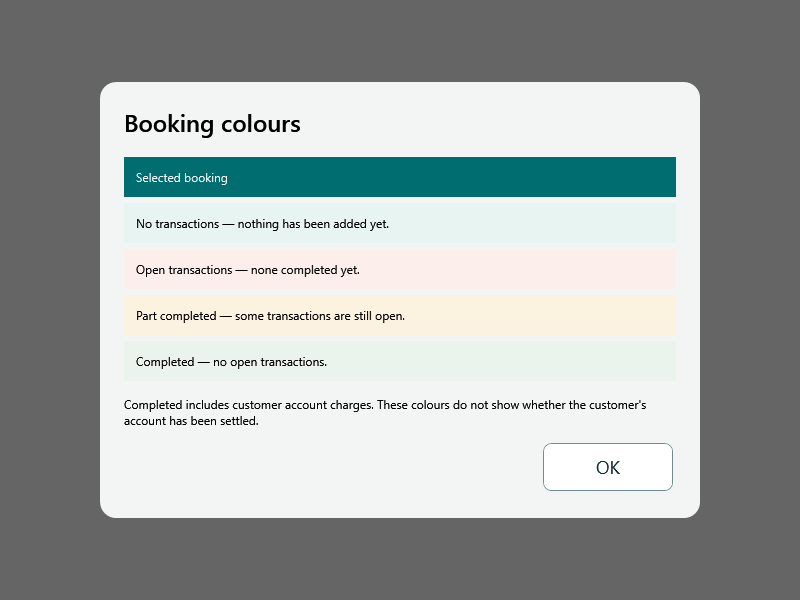
The card labels are No transactions, Open transactions, Part completed and Completed. A selected card is highlighted in teal. Completed transactions include payments charged to customer accounts; the card colour does not mean the customer's account has been settled.
If there are no resources to display, clear the filter or create resources in Back Office. The free edition continues to limit the number of resources displayed.
For a searchable list by date, resource and transaction state, open Menu > Bookings List. For more help, see the Bookings FAQ.
Earlier quick-start video
This video shows an earlier interface. Use the instructions and screenshots above for the current planner.