ROBOTILL Connect
ROBOTILL Connect lets you view sales and stock reports online for your shops and branches. Organise your shops under a business, then pair each shop's ROBOTILL installation with its own site. A connected site with an active reporting subscription can show an overview, daily sales, product sales and stock on hand.
ROBOTILL Connect is replacing the legacy Head Office service. Existing Head Office customers can move to Connect at no additional cost for the rest of their current Head Office licence. If you use features such as Head Office stock transfers, contact Support to plan your move.
Create your account
- Open ROBOTILL Connect and select Create your account.
- Enter an email address you can access and choose a password. Use at least 12 characters, including an uppercase letter, a lowercase letter, a number and a symbol.
- Select Create account. Open the confirmation link in your email, then sign in to Connect. If the email doesn't arrive, check your spam folder or use Resend confirmation email.
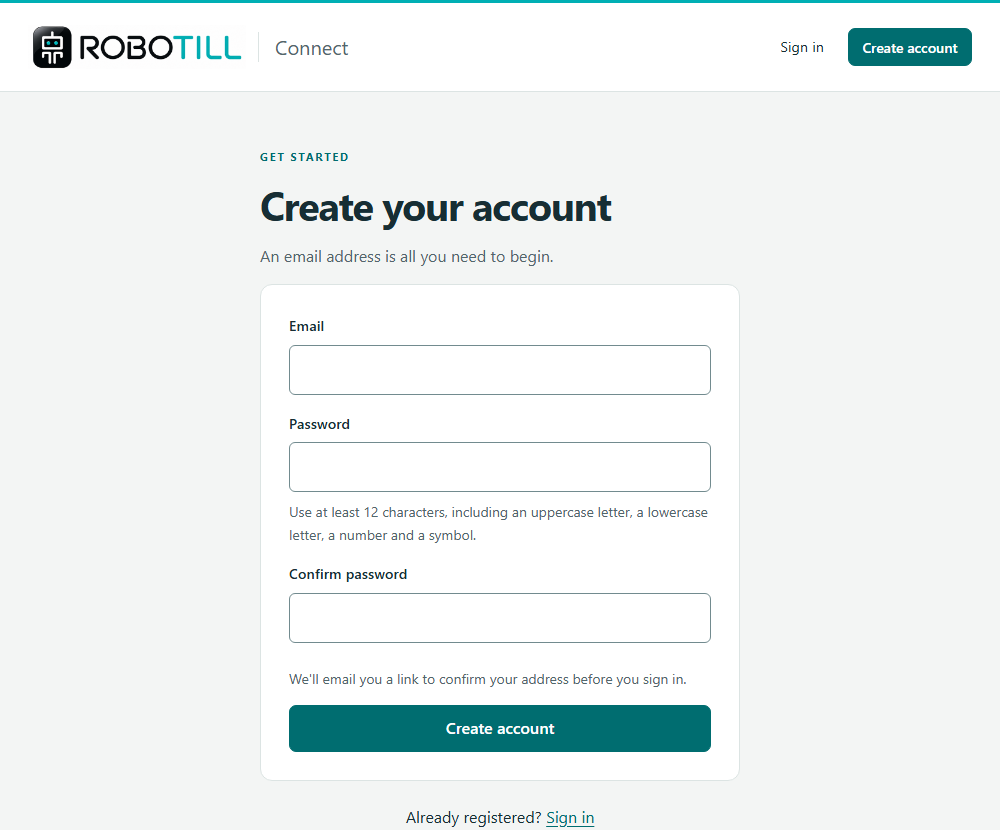 The ROBOTILL Connect account form.
Add a business and site
- On Your businesses, select Create a business. Enter the name you and your team use, then select Create business. Your account becomes the owner.
- Open the business and select Add a site. A site represents one shop or branch using a ROBOTILL database.
- Enter the site name, choose the time zone and currency used at the shop, then select Add site. These settings determine the reporting days and currency.
Connect a site from Back Office
- On the registered Back Office computer that will keep the site connected, sign in as a ROBOTILL administrator. Go to Setup → ROBOTILL Connect.
- Enter your ROBOTILL Back Office administrator password. If the website address is blank, enter https://connect.robotill.com. Select Start pairing, then Copy code.
- Select Open Connect website and sign in with the Connect account that owns the business. Paste your code, choose the business and site, and select Review connection.
- Check the installation, computer and site shown on the website. Select Approve connection if they match.
- Return to Back Office. Check the business and site again, then select Confirm this business and site. When Back Office shows the connection is active, open the site in Connect to see its connection status and reports.
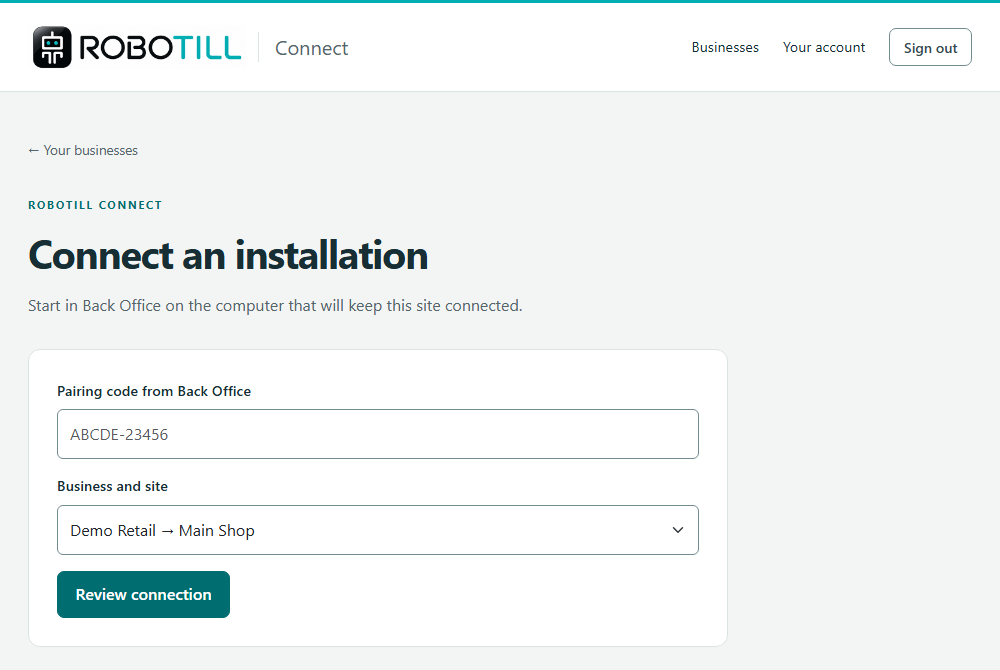 Enter the code from Back Office and select the shop or branch it belongs to.
Keep the chosen computer switched on and connected to the internet. The ROBOTILL Connect service runs in the background when Back Office is closed. If Back Office reports that the service is unavailable, open Advanced and select Install / repair service.